ADATA · أقراص SSD من نوع NVMe
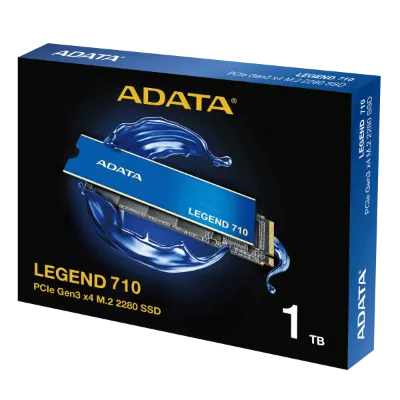
ADATA LEGEND 710 1TB PCIe Gen3 x4 M.2 2280 SSDLEGEND 710 · 1TB
من 125 د.أمتوفر
مقارنة عبر 4 متاجر
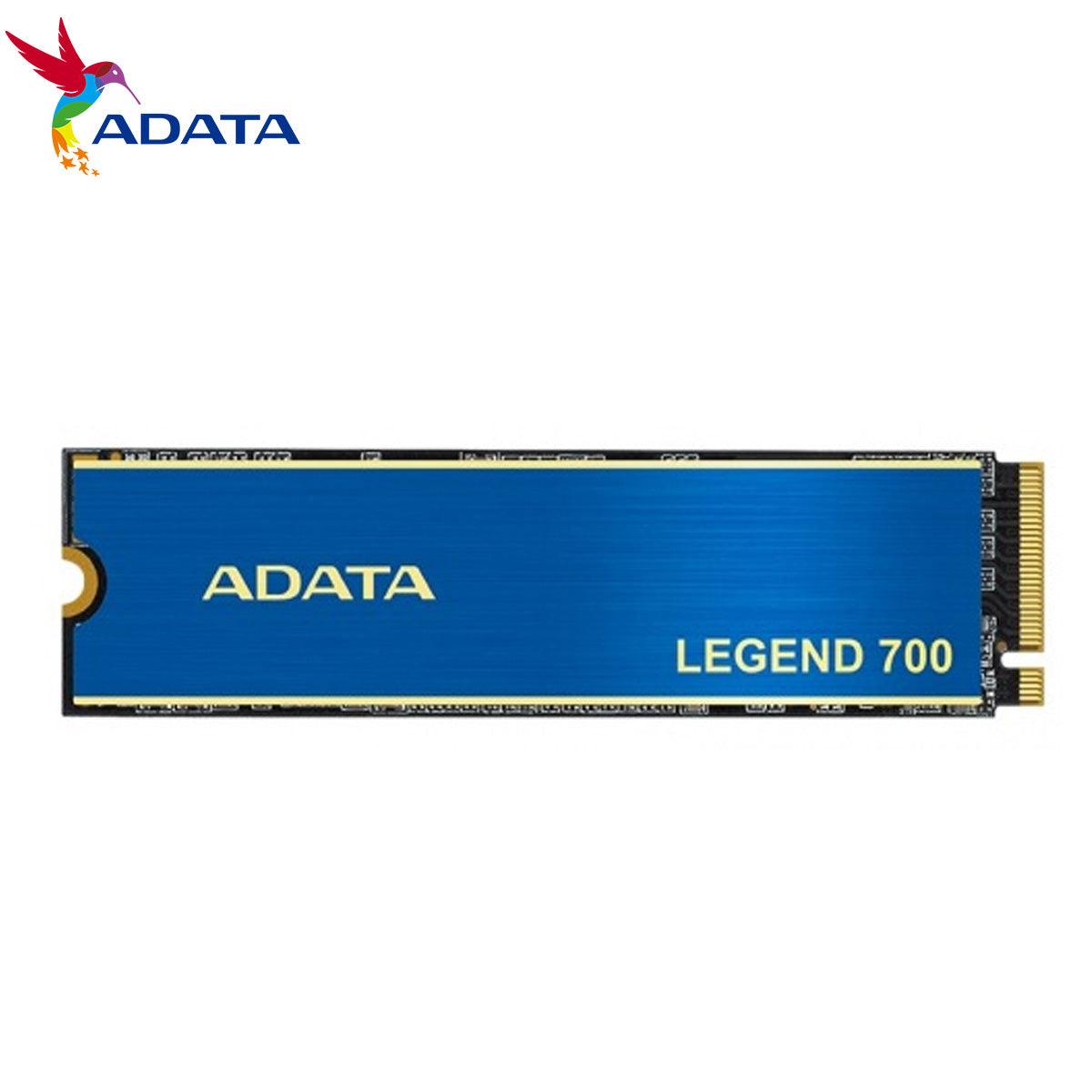
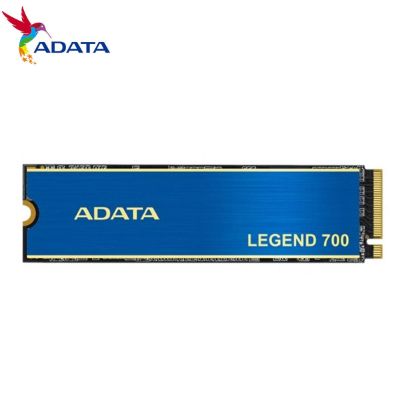
Legend 700 · 1TB
Storage Specifications · Capacity 1TB · Interface M.2 · Dimensions (L x W x H) 80 x 22 x 3.13mm / 3.15 x 0.87 x 0.13inch (with heat sink)80 x 22 x 2.15mm / 3.15 x 0.87 x 0.09inch (without heat sink) · Weight 9g / 0.32oz (with heat sink)6.2g / 0.22oz (without heat sink) · Performance Sequential Read (Max):Up to…
| المتجر | السعر | التوفر | الإجراءات |
|---|---|---|---|
 JoCell | 143 د.أ | غير متوفر | زيارة المتجر |
متجر واحد فقط في هذا الكتالوج يعرض هذا المنتج. تأكد من السعر النهائي لدى المتجر.
أضيف أقل عرض 2026-11-15 · حُدث 2026-11-25 · لم يُسجَّل أي تغيير للسعر
ابحث عن عروض المتاجر الأخرىDownloadSSD ToolBoxto get the latest firmware for optimized performance and other value-added features
The LEGEND 700 utilizes PCIe Gen3 x4 and NVMe 1.3 to deliver sustained read and write speeds of up to 2,000/1,600 MB per second. It's M.2 2280 specification supports the latest Intel and AMD platforms, including desktop PCs and laptops.
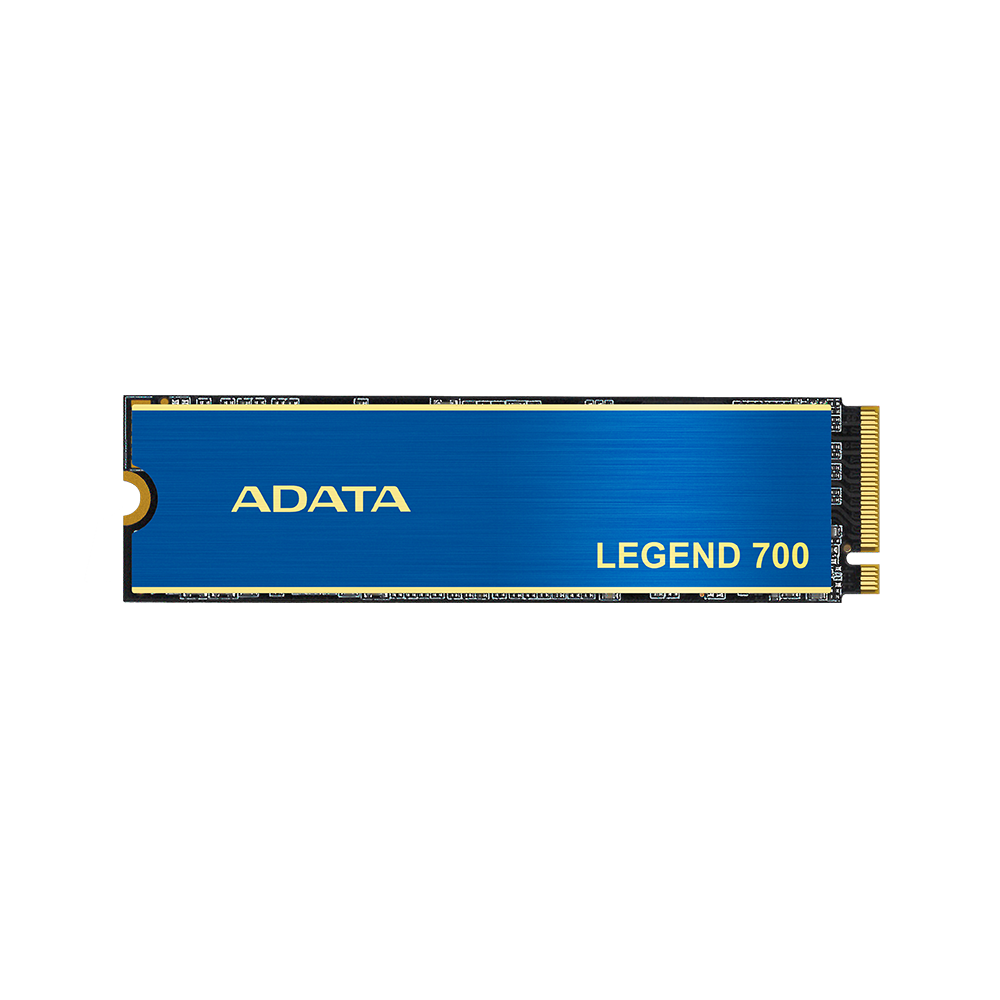
The LEGEND 700's understated but elegant heat sink design is characterized by a regal blue color scheme with an exquisite golden trimming. The heat sink works to keep temperatures down for optimal performance and stability.
Creativity can't wait! The LEGEND 700 is equipped with SLC caching and HMB technology (Host Memory Buffer) for seamless productivity.
With LDPC (Low Density Parity Check Code), the LEGEND 700 ensures accurate data transmissions and security.
SSD Toolbox helps enhance overall performance and stability through the latest firmware updates, while also resolving occasional minor hardware and software issues. The Dashboard continuously monitors, analyzes, and reports S.M.A.R.T. data, allowing users to check SSD health and remaining lifespan, as well as current operating temperature and storage capacity—so you can stay on top of your SSD status at all times.
To protect your SSD and valuable data, keep your firmware up to date.Click here to download SSD Toolboxfor more details.
LEGEND 700 uses only high quality ICs that have been rigorously tested. For further peace of mind, it come backed by a 3-year warranty.
First, please refer to your system's user manual to ensure the issue is not related to the host device or hardware. We recommended doing some basic software-level troubleshooting. Use SSD Toolbox to check your SSD status, then go to "Utility" in the left sidebar and select "Firmware Update" to update. Once the update is complete, restart your system—this can help resolve intermittent issues like these.
Important: Before updating the firmware, be sure to back up your valuable data and keep the system powered on throughout the update process to avoid update failure.
Please first confirm whether you have set the SSD as a virtual disk (Control Panel>System and Security>Storage Spaces). Toolbox is unable to detect a virtual disk. You can delete the virtual disk in Storage Spaces or format and initialize the SSD in Disk Management. Toolbox will then recognize the SSD.
ADATA SSD warranties are based on warranty period or Total Terabytes Written (TBW).
DRAM buffer is a function designed to improve the efficiency of reading and writing. Generally, it is composed of 1 to 2 DRAM modules on an SSD. Whether an SSD has a DRAM buffer is often decided by the manufacturer according to its market positioning. Generally speaking, entry-level models do not typically have a DRAM buffer.
Wear leveling is a process that is designed to extend the life of solid state storage devices. SSDs are store data in blocks. Each block can tolerate a finite number of program/erase cycles before becoming unreliable. For example, MLC NAND flash is typically rated at about 3,000 program/erase cycles. Wear leveling arranges data so that write/erase cycles are distributed evenly among all of the blocks in the device.
SSD TRIM is an Advanced Technology Attachment (ATA) command that enables an operating system to inform a NAND flash solid-state drive (SSD) which data blocks it can erase because they are no longer in use. The use of TRIM can improve the performance of writing data to SSDs and contribute to longer SSD life. Currently, TRIM is used in Windows 7, Server 2008, Mac OS 10.7, and newer versions of Linux. In addition, regardless of operating system, no RAID configuration supports TRIM.
According to the Serial ATA International Organization the SATA 3.0 specification offers transfer speeds up to 6Gbps compared to 3Gbps for SATA 2.0. Regardless, SATA 2.0 and SATA 3.0 use the same interface and cables.
At present, various storage methods, including optical discs, hard drives, and SSDs are not ideal for storing data permanently. Therefore, we recommend that important data be backed up to several different devices to diversify your risks.
The lifespan of an SSD is based on its health. ADATA's SSD ToolBox is a set of auxiliary software for checking SSD health. In principle, your health will be determined by the length of time you use your SSD and the number of read and write cycles. The longer you use it, the more read and write cycles, the shorter the lifespan of your SSD. Generally speaking, SSDs have wear-leveling technology built-in that helps extend the lifespan of your SSD. However how you use your SSD is the main factors in determining your SSDs lifespan. If a large amount of data is written over a long period of time or if you use your SSD in extreme environments, lifespan may be shortened.
Speeds may vary because different test software use different parameter settings and test methods, and the different testing environments and PC configurations may also have an influence (for example: different motherboards or CPUs, etc.). In addition, the amount of free space, namely lack of, will also affect writing speeds. For better performance, you can try the following:
The difference in capacity is mainly due to the different calculation methods used by your PCs operating system and the SSD. SSDs calculate capacity based on the decimal system, e.g.: 1KB - 1000 Byte bytes, 1MB - 1000KB, 1GB - 1000MB, 1TB - 1000GB, and so on; Your PCs operating system uses the binary system, e.g. 1KB x 1024 Byte byte, 1MB x 1024KB, 1GB x 1024MB, 1TB x 1024GB, and so on. For example, if the packaging shows capacity or 500GB, it is calculated as follows: 500GB x 500 x 1,000MB x 1,000KB x 1,000Byte x 500,000,000,000Byte. Your PCs operating system will calculate as follows: 500,000,000,000 Byte/1024KB/1024MB/1024GB, or approximately 465GB.
Remarks: For a faster calculation method, the capacity listed on the packaging can be calculated as x0.93=SSD for approximate capacity
HDD Sentinel Health displays anomalies because this tool incorporates the S.M.A.R.T attribute 168 (A8), 159 (9F) fields into the health display, but these two fields are self-defined by each vendor, so these two fields are not associated with health calculations. Please remove the wrong interpretation position of the two fields according to the illustration, and the SSD health can be displayed as normal.
This is related to the storage format of your SSD. If using the Windows FAT32 format, the maximum size of any single file is limited to 4GB. To avoid this situation, please change reformat your SSD to NTFS.
ADATA SSDs are designed in accordance with the Serial ATA International Organization standards and have undergone rigorous testing to ensure they work with various operating systems.
Since SSDs don't have mechanical drives, so there is no need for defragmentation. Defragmenting an SSD may cause unnecessary wear and tear. SSDs are designed to write data evenly on the entire drive as much as possible, thereby reducing excessive wear on any one location.
ADATA SSDs can use standard drivers, which can be applied to different operating systems; at the same time, users can also install the drivers officially provided by the motherboard manufacturers. If you have other questions, please contact ADATA's customer service center.
Set up RAID 0 on a compatible motherboard, then connect two SSDs of the same specification to the set port. For detailed instructions, please refer to your motherboard's user manual. The performance of the SSD with a RAID 0 configuration will be double that of a single SSD.
If you have used the SSD normally before, but then fails to format, please try the following steps:
M.2 SSD => Loosen the screws and remove the M.2 SSD and check the interface connector for dirt or scratches. Then reinstall it.
SATA 2.5-inch SSD => Unplugged the SATA cable and check the interface connector for dirt or scratches. Then reinstall and ensure the cable is properly plugged in. In some cases, an old cable may cause your SSD to not be detected.
If you have tried the above but the problem persists, the SSD might be faulty. Check your warranty period on ADATA's official website.
If it is inconvenient for you to visit a service center for repair, you can apply for online repair at ADATA's website:
After completing the application, please follow the instructions to properly package the product and then send it to the designated address. After ADATA has received your product, we will begin to process it as soon as possible.
For detailed instructions for Windows 7, please click here; For Windows 8.1 or Windows 10, please click here; For Windows XP, please click here.
If you encounter this problem, please refer to your motherboard's user manual or the manufacturer's website. Motherboards vary by model and brand. The type and quantity of I/O ports are not the same; therefore, when a SATA or NVMe M.2 SSD is inserted into the slot, it may be affected by I/O. The sharing of channels by the ports results in a limited number of channels supported by the chipset, rendering some 7pin SATA sockets unusable.
PCs that do not support PCIe Gen4 SSDs can still use the said SSDs. However, the SSDs performance will be limited to PCIe Gen3 levels.
Firstly check the make and specifications of your motherboard on the manufacturers website to see if it has M.2 slots that support PCIe 4x4. If there are two M.2 PCIe 4x4 slots, you can use the direct link to the CPU terminal (center Processor) M.2 socket for better performance
Firstly, confirmed your SSDs form factor - M.2, mSATA, or SATA. Locate the correct slot type on your motherboard, insert your SSD and secure it with screws. For video instructions, M.2 SSD on desktop please click here, M.2 SSD on laptop please click here, SATA SSD on desktop please click here, SATA SSD on laptop please click here.





استناداً إلى سجلات الأسعار المتاحة، وليس ضماناً لأعلى أو أدنى سعر على الإطلاق.
لم يتغيّر سعر هذا المتجر منذ تسجيله أول مرة في 2026-11-15، وهو حالياً 143 د.أ.
| التاريخ | السعر | التغيير |
|---|---|---|
| 2026-11-15 | 143 د.أ | أول تسجيل |
LEGEND 710 · 1TB
مقارنة عبر 4 متاجر
LEGEND 710 PCIe Gen3 x4 M.2 2280 SSD · 2 TB
مقارنة عبر متجرين

Legend 700 · 512GB
فقط في JoCell
ALEG-700-256GCS · 256GB
فقط في JoCell