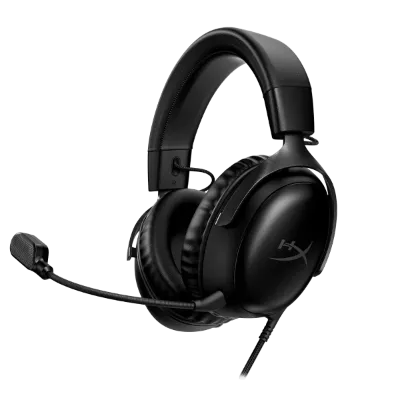
أضيف حديثاً
HyperX · سماعات الرأس
HyperX Cloud 3 Wireless Gaming Headset (Replica)Cloud III Wireless
79 د.أمتوفر
فقط في Gamers
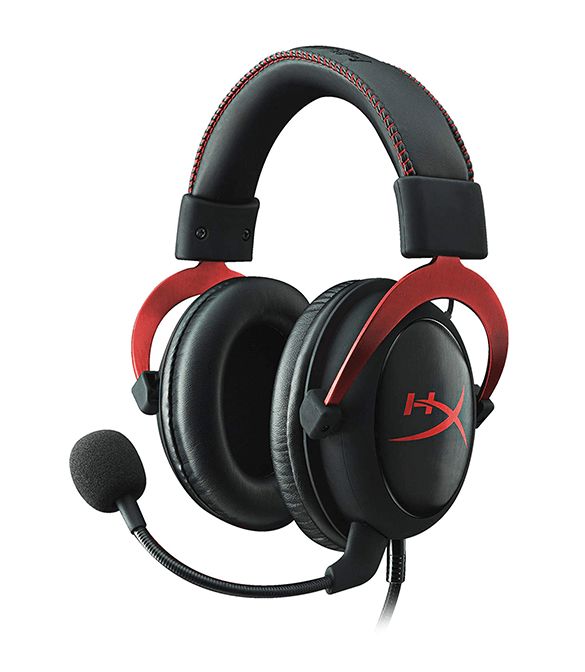
Cloud II Gaming Headset
- USB Audio Sound Card with 7.1 Virtual Surround Sound · - 53mm Drivers Neodymium Magnets · - Noise Cancelling Microphone via Inline Sound Card · - Echo Cancelling via Inline Sound Card · - 15-25kKhz Frequency Response · - Memory foam ear pads with extra set of Velour ear pads and Detachable Microphone · - TeamSpeak…
| المتجر | السعر | التوفر | الإجراءات |
|---|---|---|---|
 Gamers | 55 د.أ | متوفر | زيارة المتجر |
متجر واحد فقط في هذا الكتالوج يعرض هذا المنتج. تأكد من السعر النهائي لدى المتجر.
أضيف أقل عرض 2026-11-12 · حُدث 2026-11-25 · آخر تغيير للسعر 2026-11-18
ابحث عن عروض المتاجر الأخرىHyperX Cloud II features a newly designed USB sound card audio control box that amplifies audio and voice for an optimal Hi-Fi gaming experience, so you can hear what you’ve been missing. Open up a world of detail other gamers will never know — the rustle of a camper’s boot, the scuttle in a distant vent. This next-generation headset generates virtual 7.1 surround sound with distance and depth to enhance your gaming, movie or music experience. The headset must be selected as the default audio device in your sound settings. For Windows:1. Open up Control Panel and select Hardware and Sound and then select Sound. 2. If the “HyperX 7.1 Audio” is not currently the default audio device, right-click on the option and select “Set as Default Device.” 3. This should place a green check mark next to the default audio device. Repeat the same steps for the microphone portion of the headset, located under the “Recording” tab (also found in the Sound program in Control Panel.) For Mac: 1. Click the Apple menu and select “System Preferences” from the drop-down menu. 2. In “System Preferences”, click on the ‘Sound’ icon. 3. Click on the Input tab and select “HyperX 7.1 Audio” for default sound input. 4. Click on the Output tab and select “HyperX 7.1 Audio” for default sound output. Note: The headset may appear as "USB audio" instead of "HyperX 7.1 Audio".
استناداً إلى سجلات الأسعار المتاحة، وليس ضماناً لأعلى أو أدنى سعر على الإطلاق.
| التاريخ | السعر | التغيير |
|---|---|---|
| 2026-11-18 | 55 د.أ | +10 د.أ |
| 2026-11-12 | 45 د.أ | أول تسجيل |
Cloud III Wireless
فقط في Gamers
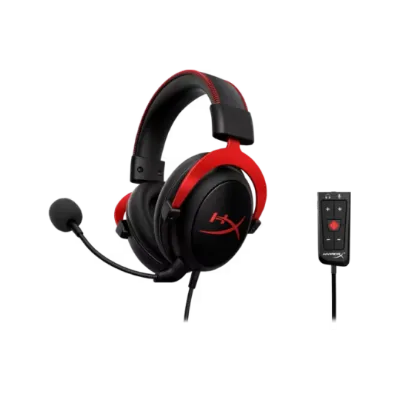
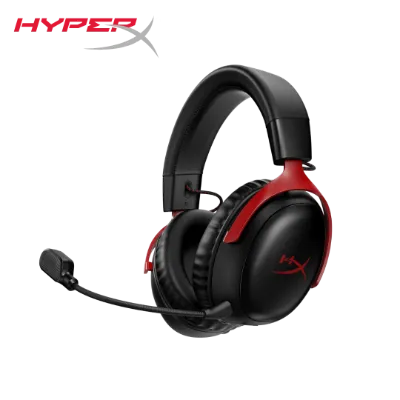
Cloud III Wireless · لاسلكي
مقارنة عبر 8 متاجر