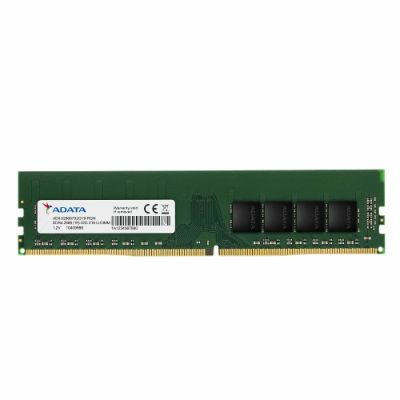
Product
Product gallery · ADATA
ADATA · RAM
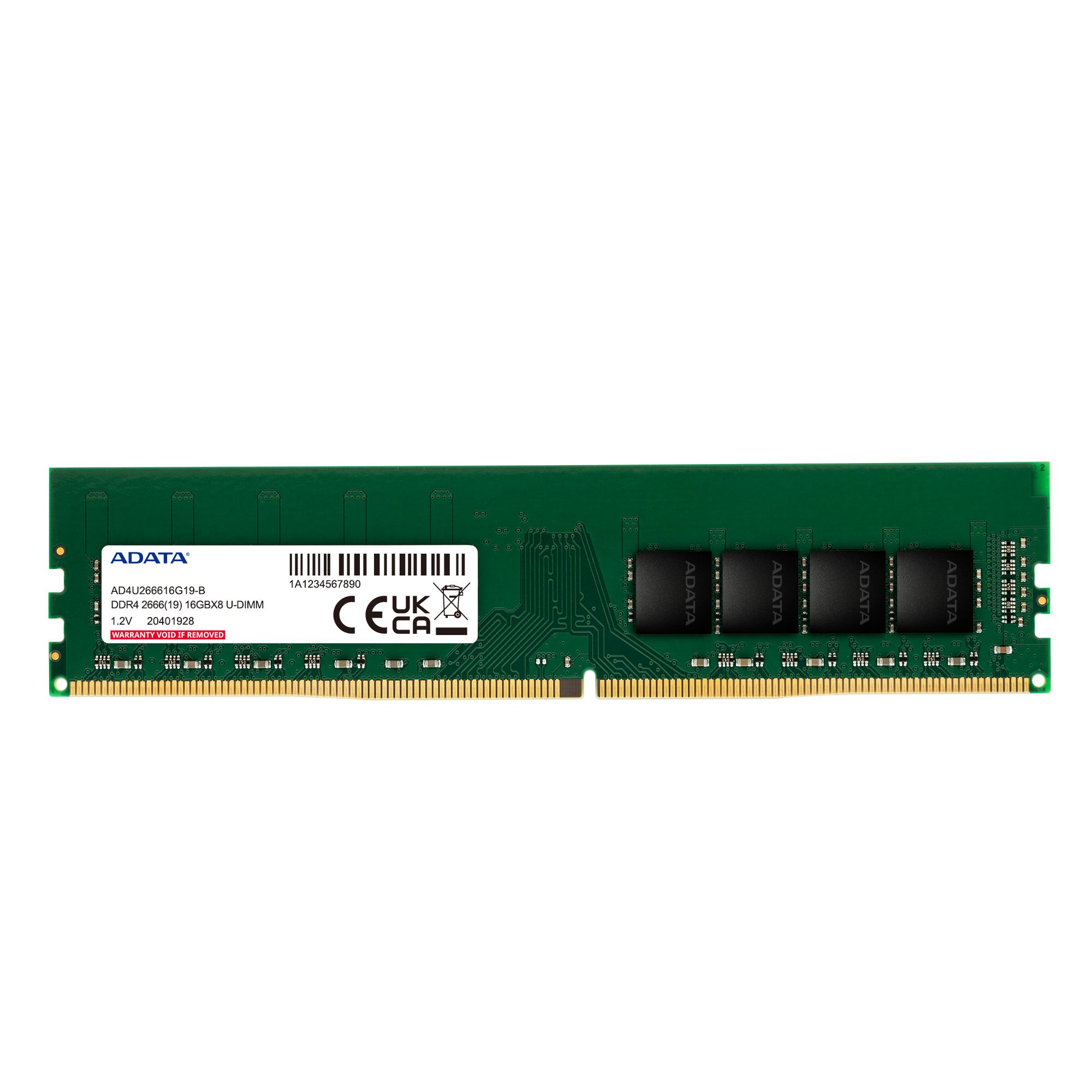
ADATA 4GB DDR4 2666mHz Memory Module AX4U2666W4G16-SBF
AX4U2666W4G16-SBF · 4GB
Only at MID Teks Inc42 JOD
Out of stock
One part. Every option.
Prices in JOD| Retailer | Price | Availability | Actions |
|---|---|---|---|
 MID Teks Inc | 42 JOD | Out of stock | Visit retailer |
Only one retailer in this catalogue is listing this product. Confirm the final price with the retailer.
Lowest offer added 2021-12-25 · Updated 2026-11-25 · No price change recorded
Search for other retailer offersThe finer details
- Model
- AX4U2666W4G16-SBF
- Brand
- ADATA
- Part number
- AX4U2666W4G16-SBF
- Category
- ComponentsRAM
- CAS Latency
- 19from the maker's site
- Memory Type
- DDR4from the maker's site
- Module Type
- DIMMfrom the maker's site
- Speed
- 2666 MT/sfrom the maker's site
- Voltage
- 1.2 Vfrom the maker's site
- Memory Capacity
- 4 GB
| Memory Specifications | |
|---|---|
| Device | PC |
| Memory Type | DDR4 |
| Speed | 2666MHz |
| Capacity | 4 GB |
| After Sales Support | |
| Warranty | 1 Year |
From ADATA
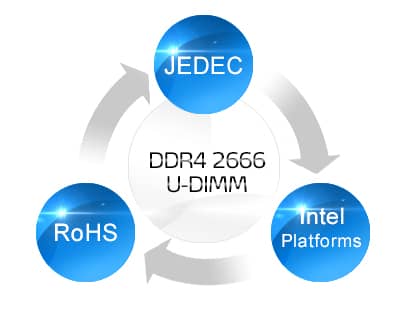
View on ADATA's siteADATA Premier DDR4 2666 unbuffered-DIMM memory is the latest upgrade solution that supports Intel's newest platforms for faster data transfer and enhanced power efficiency. Utilizing a 288-pin design, operating voltage has been reduced from 1.5V on DDR3 to 1.2V, which not only helps save power by 20%, but also boosts transfer bandwidth speed to 21.3GB/s. Every chip in ADATA memory modules meets strict JEDEC and RoHS standards, ensuring compatibility, stability, and environmentally friendly products.
Meets Demanding Standards for New-Generation Platforms
After confirming the installation with the memory device that is suitable for the system, please follow the steps as below:
- According to your motherboard layout, re-insert the memory device with the maximum capacity to the 1st socket, then re-insert the memory device to with the smaller capacity in a decreasing order. Ensure that the memory module has been installed correctly, then align each DIMM with the connector slot by aligning the notch in the DIMM with the key in the connector. Then, steadily and firmly push the memory device into the slot until locking to the position.
- Make sure that all cables in the computer are connected correctly. Make sure required power connector is well-connected to the motherboard, and avoid any cables that connect to the hard disk have been disconnected by accident.
- After the recommended memory device is installed correctly, but the laptop won’t re-boot or identify the memory device, it may be necessary to download the latest BIOS from the laptop manufacturer’s website.
The occurrence of the blue screen may be resulted from many factors; the hardware may affect the parts including RAM, motherboard, hard disk and power supply. To verify whether or not it is a problem RAM, it’s recommended to use the RAM test software, Memtest86+. If there is a red error message, it’s confirmed to be the DRAM problem, please contact the customer service agent.
- Verify that the system requirements specifications (SRS) are mutually supportive. (CPU, motherboard, DRAM, and power supply)
- Verify the power connection, if there’s no electricity, it may be the broken power supply or a short circuited protection board.
- If there’s a BIOS warning sound after system startup, please refer to the BIOS manufacturer to fix the errors.
- If the computer is power-connected without a BIOS warning sound, please replace the CPU, MB, memory in order until system startup.
In many cases, the BIOS or diagnostic program will report the memory bus frequency, which is half of the memory frequency. Because the rate of DDR data transfer (double data transfer) is twice the memory bus frequency. If the bus speed is 800MHz, and DDR3-1600 memory is used, the correct memory operating speed is at 1600.
- If it is a newly purchased memory, confirm that your previous memory and the newly purchased memory are of the same brand, frequency, capacity, and number of particles. If they are the same, we recommend that you try to insert the memory in another computer or other slots on your motherboard. If the problem persists, it may be a memory failure. It is recommended that you send the product through the original purchase merchant or the nearest ADATA authorized service center for repair.
If the new memory does not belong to the same brand as before, you can consult the memory compatibility of your computer manufacturer.
- If there is a fault in normal use and it can be repaired through the service center, you can contact your purchaser or our service center for repair.
If it is inconvenient to send repairs to the service center, you can apply for repair online on XPG’s official website.
After completing the application, please follow the instructions to properly package the product and return it to the designated address. We will carry out the repair process for you as soon as possible after receipt.
The service center only provides service for the repair of products (the appearance of the product must not exhibit external damage, and the stickers must be intact). The warranty scope and authenticity of the product will be determined by the original factory based on the physical product received. It is recommended that you file a clear picture of the front and back of the product before sending it for repair.
【Important reminder: If your memory needs to run dual channels, please send both modules together for repair to facilitate dual channel testing.】
CPU-Z can be recognized as one of the most classic computer system information software, the relevant information about testing current computer device:
Channel: The number of channels that are used in the operations of the Memory Device. In the example, the number of channels is 4, which means that the system will combine the bandwidth of the 4 memory devices to increase transmission performance.
FSB and DRAM ratio: The ratio of front side bus (FSB) frequency and DRAM Frequency
RAM Timing Benchmarks (CL, tRCD, tRP, tRAS, tRFC, CR): Each of the 6 different benchmarks individually represents the frequency cycle required for different DRAM operations.
QVL stands for Qualified Vendor List, which is provided by a motherboard manuafacturer to guarantee that memory can work with the motherboard.
When purchasing DDR5 DRAM, you should understand the motherboard features first and confirm the supported memory frequency by checking the QVL.
Two DIMMs per channel (2DPC) application technology is different from dual-channel. It is recommended to set the frequency reduction specification to ensure overclocking stability. For example, if you want to go up to 6,000 MT/s you need to buy a DRAM capable of 6,400MT/s. The main reason is the limitation of the motherboard. When supporting memory, the overclocking characteristics can be optimized through the BIOS. However, when four channels are inserted, higher specifications are needed to meet the system requirements of the BIOS, so that the system can run stably even in the overclocked state.
At present, motherboard makers have not yet released the QVL with 4 channels. Therefore general consumers cannot find out the list of four-channel memory from the official website of the motherboard brands.
According to each different BIOS designs of the board manufacturers, memory is shared with the motherboard-
- DVMT (The attachment is the DVMT datasheet of the Intel 6 series chipsets product.
Design of memory device varies with different memory capacities, its configuration depends on the best system performance that varies with the motherboard design by different manufacturers.
An external memory doesn’t always increase the computer’s performance. But, it’s helpful in the simultaneous multiple operations of more programs or procedures, or beneficial in operating the program that requires a large amount of memory. If the amount of memory that is originally installed doesn’t handle the programs or procedures that are operated, it’s possible to elevate the aspect of performance.
→ In Windows, please use the traditional view. Click on and open "System" to display the computer’s basic information, including the total RAM that is installed.
→ In MacOS, click on "About this Mac" or "About this Computer" from the Apple menu at the top-left corner. The information about the total memory in the Mac will be provided. (including built-in memory and externally installed DIMM or SIMM.)
→ In Linux, open a terminal window and enter the following command: cat /proc/meminfo to display the total RAM capacity as well as other memory information.
A steady price
1 recordBased on the price records this catalogue holds — not a guarantee of an all-time high or low.
This retailer's price has not changed since it was first recorded on 2026-11-22, currently 42 JOD.
| Recorded | Price | Change |
|---|---|---|
| 2026-11-22 | 42 JOD | First recorded |
Keep your options open.
Explore ram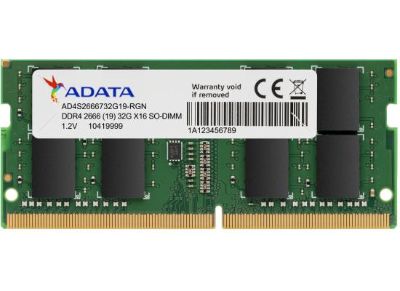
ADATA · RAM
ADATA DDR4 SO-DIMM 16GB 2666 (19)DDR4 RAM · 16GB
161 JODIn stock
Compared across 2 retailers
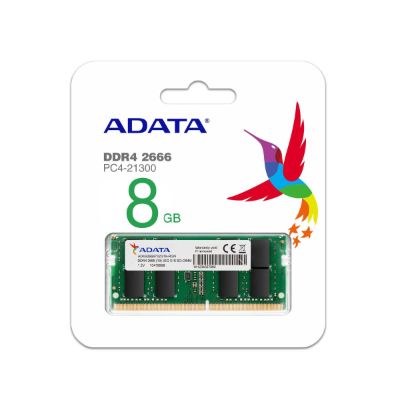
ADATA · RAM
ADATA 8GB DDR4 2666 SO-DIMM RAM For LaptopDDR4 SO-DIMM · 8GB, 2666MHz
from 35 JODOut of stock
Compared across 2 retailers
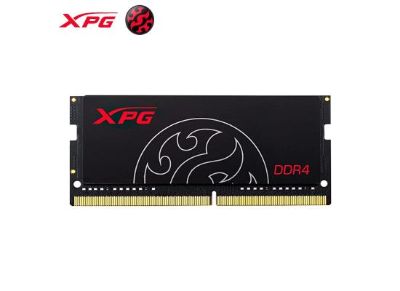
ADATA · RAM
ADATA AX4U266688G16-SBHT modul ingatan 8 GB 1 x 8 GB DDR4 2666 MHz8 GB DDR4
81 JODOut of stock
Only at MID Teks Inc